Configure Gmail SMTP as Messaging Server on CPPM 6.11.7.257550
CPPM version: 6.11.7.257550
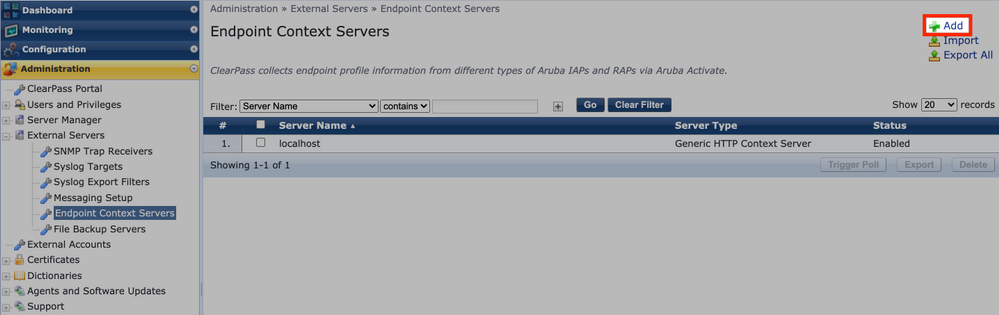
1. Select Administration / External Servers / Endpoint Context Servers / Add
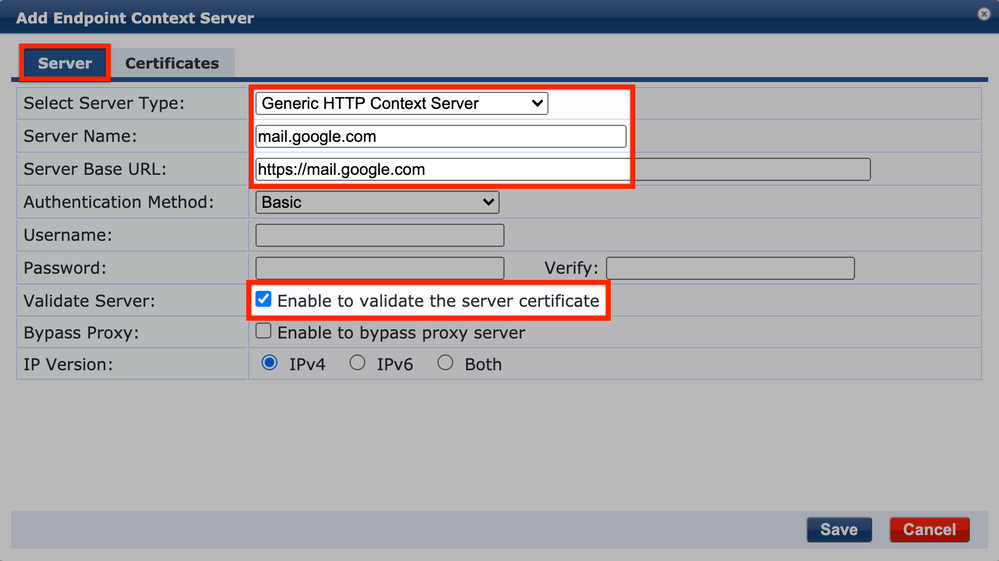
2. In Server tab, input the following
Select Server Type: Generic HTTP Context Server
Server Name: mail.google.com
Server Base URL: https://mail.google.com
Validate Server: Check Enable to validate the server certificate
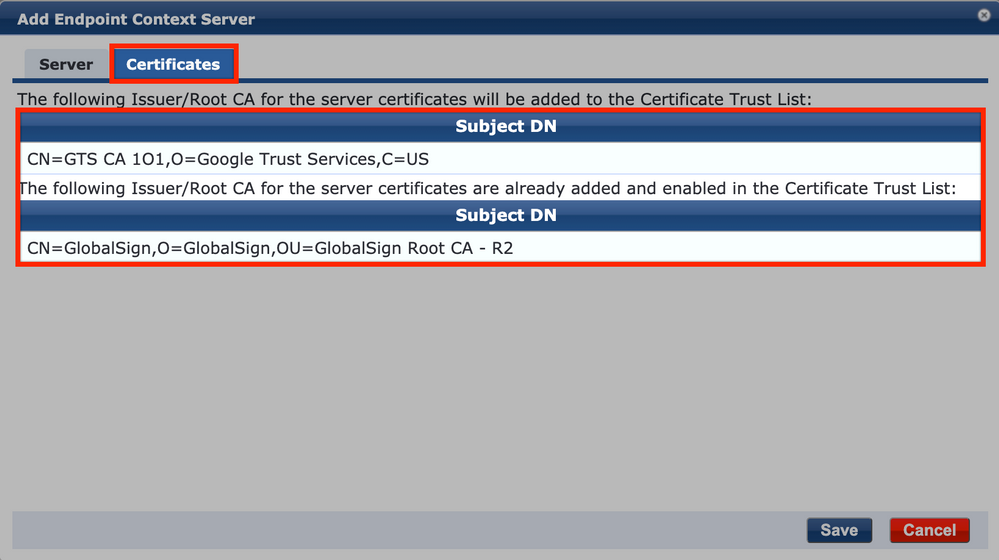
3. In Certificates tab, verify two certificates have been added to the Certificate Trust List, click Save
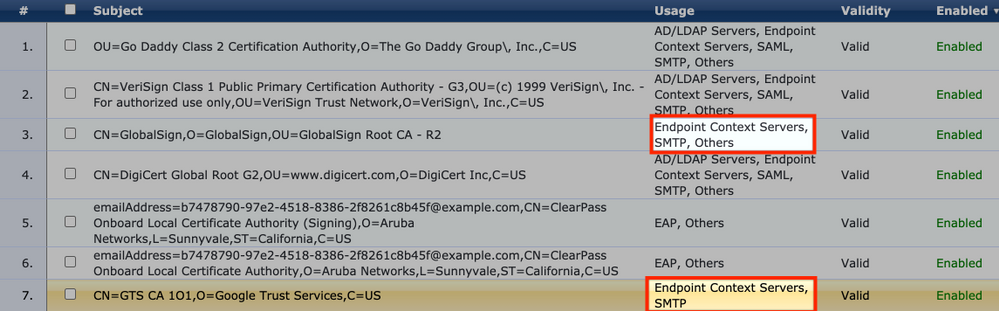
4. Select Administration / Certificates / Trust List, sort the list by Enabled column. You should see the two certificates are enabled.

5. Click the two Certificates respectively and add SMTP in the Usage list, click Update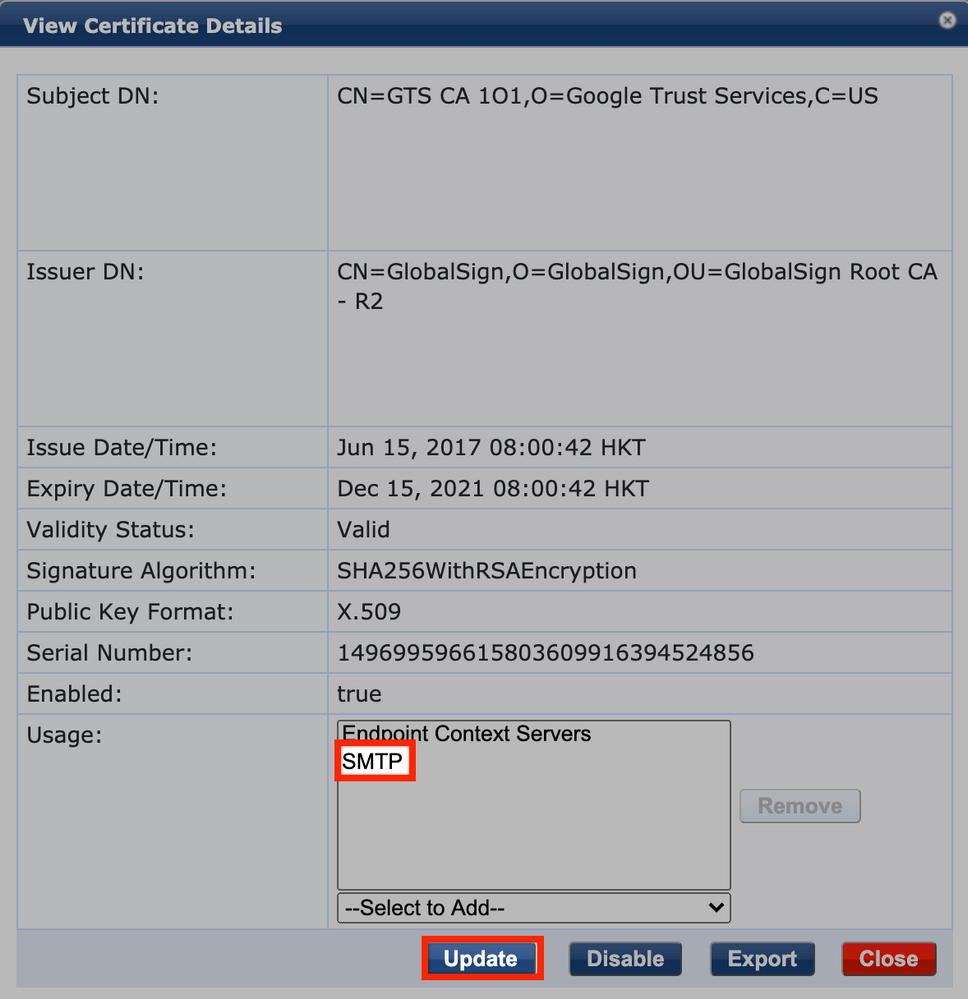
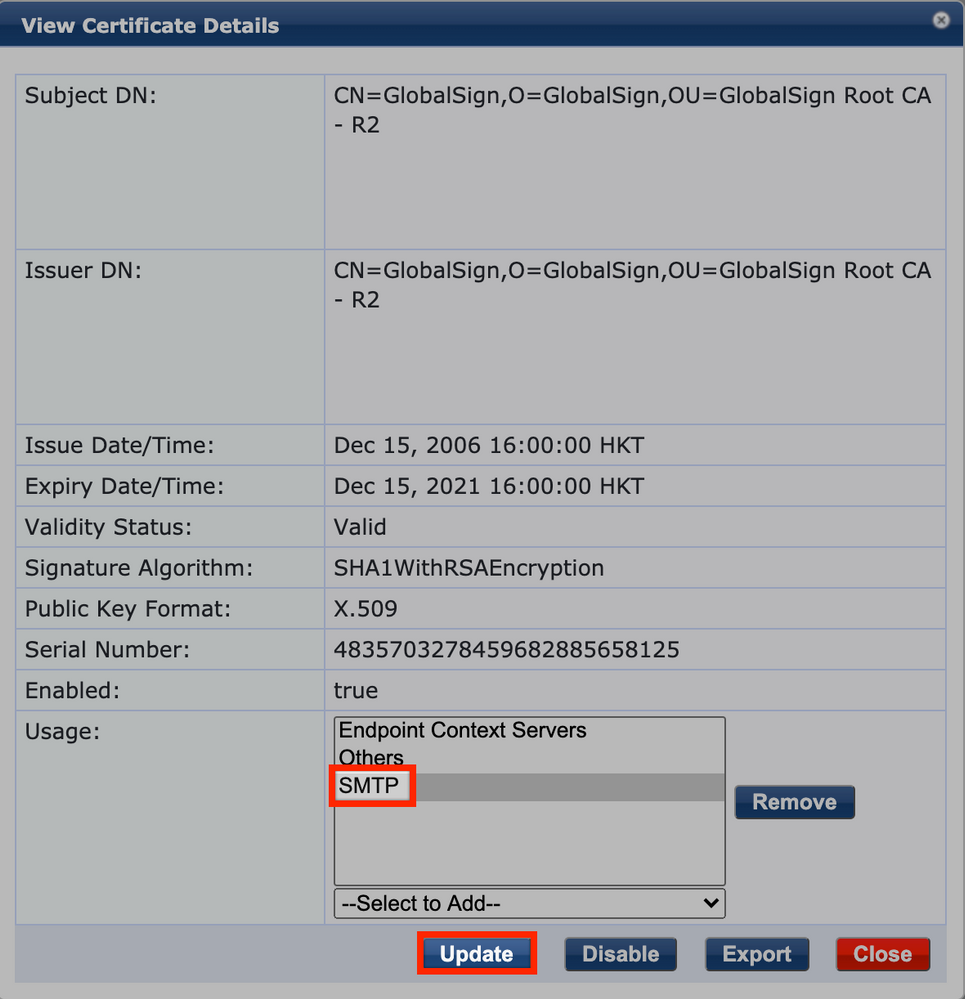
6. Verify SMTP has added updated in the Usage column
7. Configure Gmail login for SMTP
Turn on 2-Step Verification enabled in Gmail account
(For how to turn on 2-Step Verification, please refer to this link: https://support.google.com/accounts/answer/185839?co=GENIE.Platform%3DDesktop&hl=en)
7-1. Go to Manage your Google Account / Security / 2-Step Verification
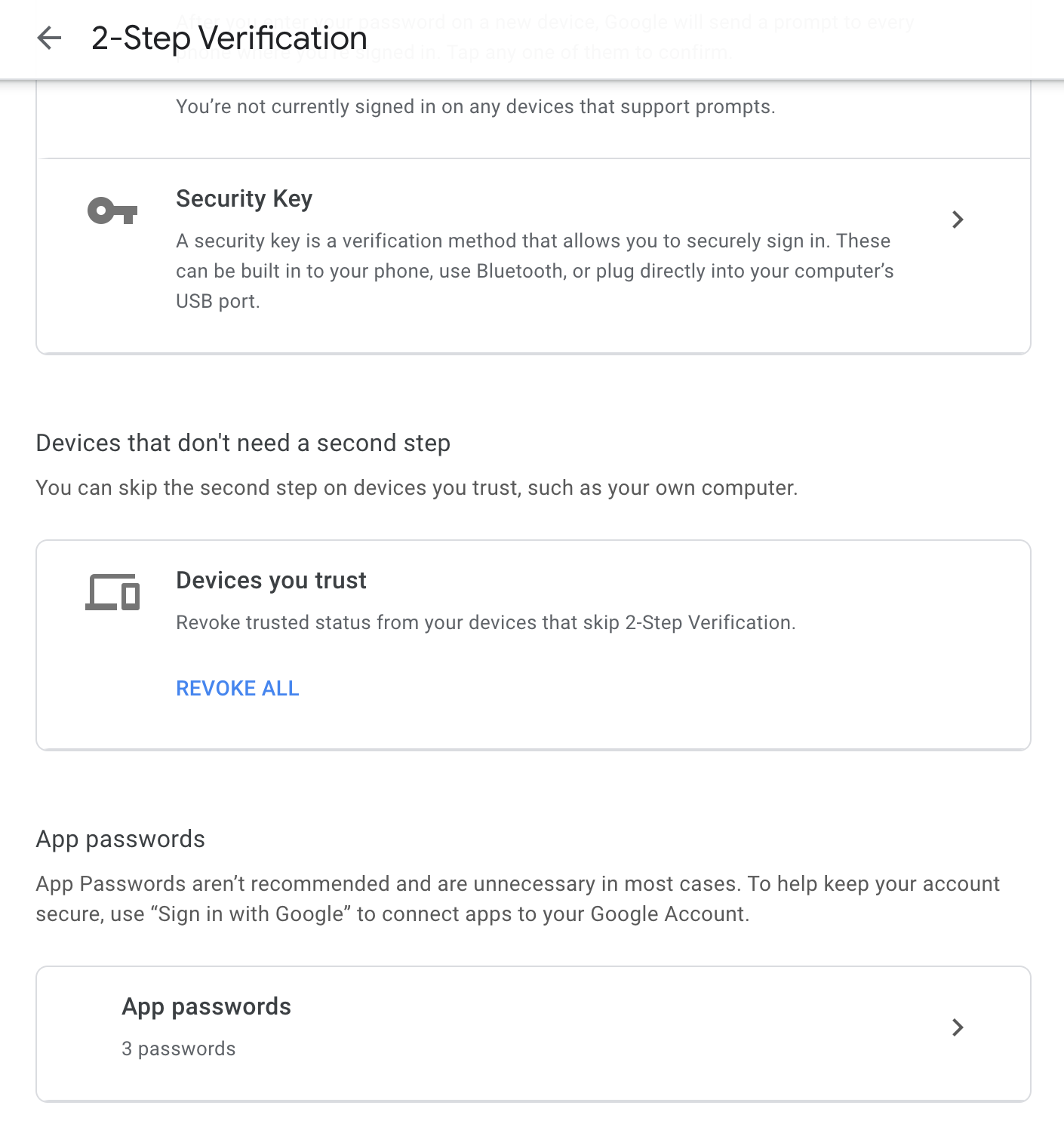
7-2. Create a new app (e.g. CPPM-APP), Click Create

7-3. An app password will be generated, save it for later purpose. Click Done
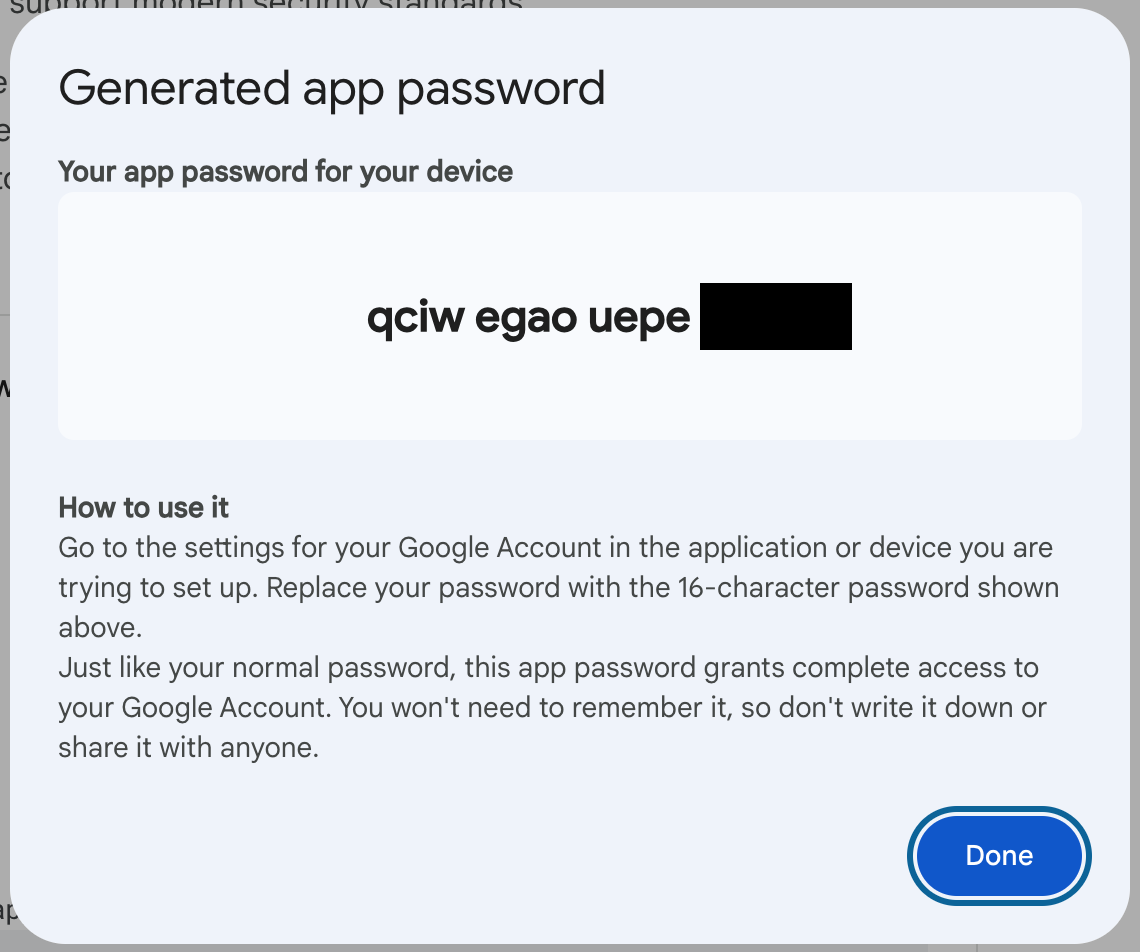
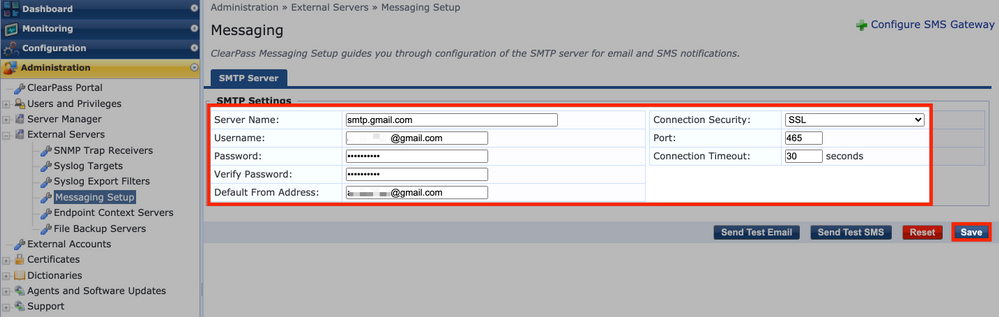
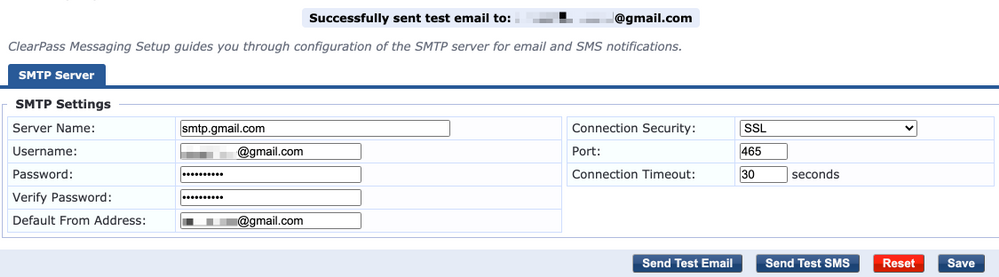
8. Go back to ClearPass, select Administration / External Servers / Messaging Setup, input the following SMTP setting
Server name: smtp.gmail.com
Connection Security: SSL Port: 465 or Connection Security: StarTLS Port: 587
User Name: YOUR_GMAIL@gmail.com
Password:
- input Generated app Password
Verify Password:
- input Generated app Password
Default From address: YOUR_GMAIL@gmail.com
Click Save
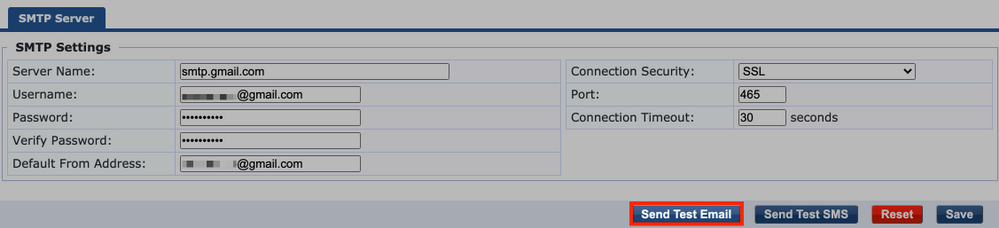
9. Click Send Test Email
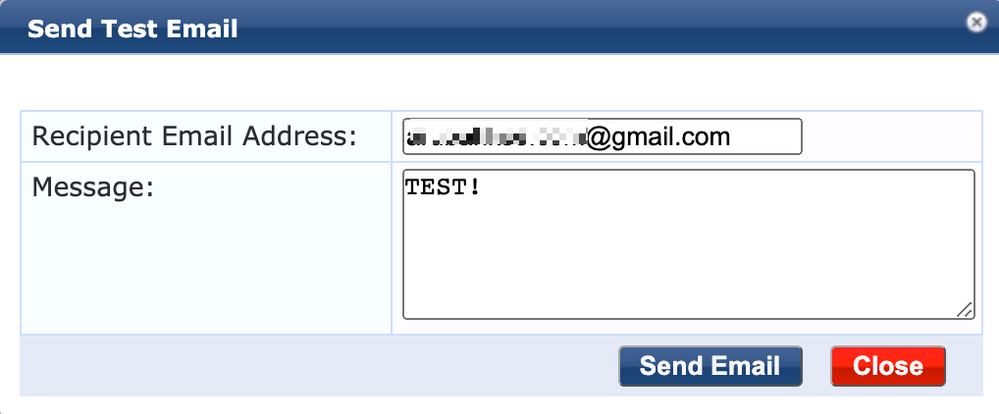
10. Input Recipient Email Address and Message, click Send Email
11. You should see a successful message
Troubleshooting:
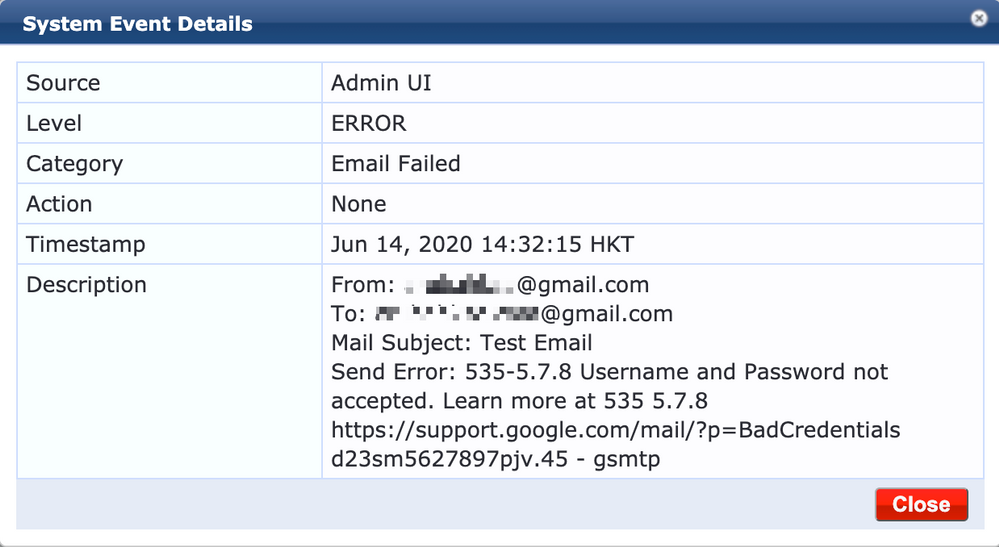
In case you cannot get a successful message, you can review the event viewer to understand the reason.
Go to Monitor / Event Viewer
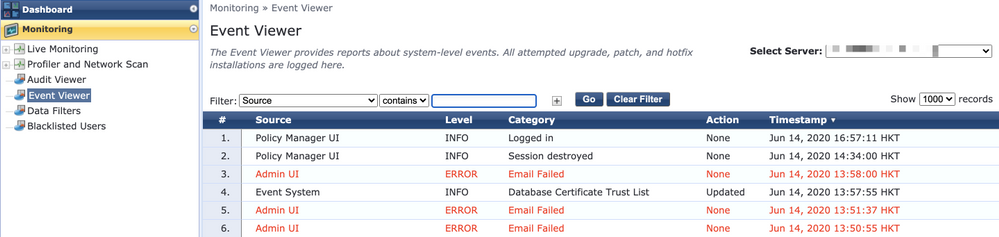
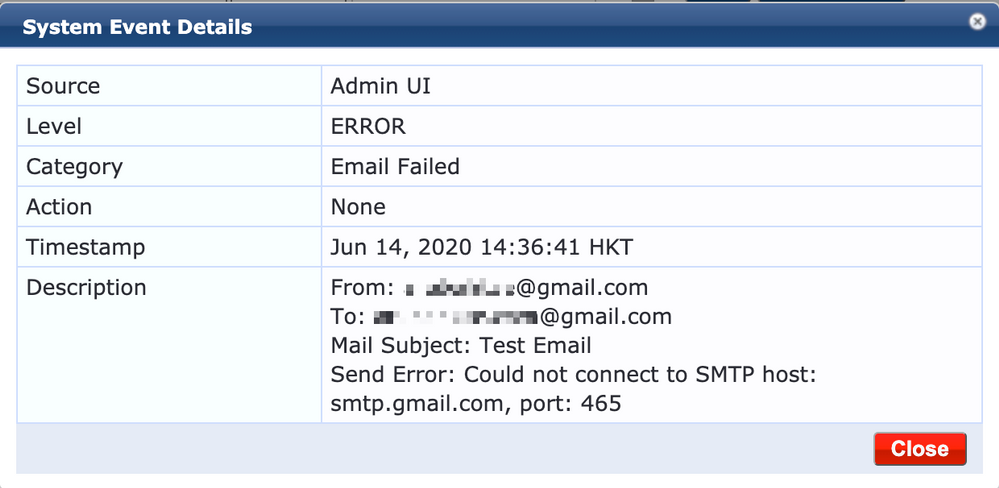
Error 1 - Possible reasons:
- Make sure Endpoint Context Servers is configured
- Review Certificates / Trust List, make sure SMTP is in the usage list
- Check DNS / IP address Setting if blocking the outgoing traffic
- Check your firewall / ACL / Antivirus Setting if blocking the outgoing traffic
Error 2 - Possible reasons:
- Make sure you input the correct username/password
- Make sure you have configured the Gmail account setting