Overview
When working with Central Switch Templates to manage Aruba switches from the cloud, the "invalid input" can be difficult to pin down at times.
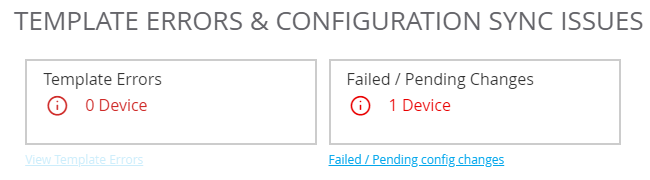
Click the Failed link, and then View Config Difference
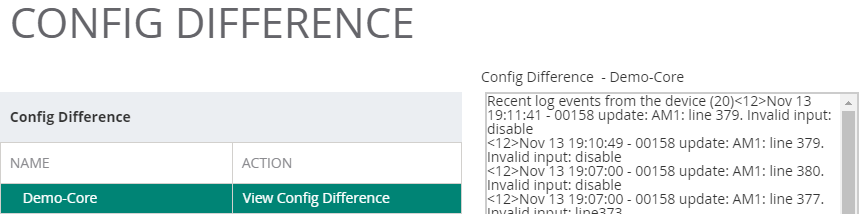
You can see the same information from the CLI with
show logging -r
The error is very unhelpful:
line 379. Invalid input: disable
All the more so since the line numbers in the config do not line up with the line numbers in the template, and there is no straightforward way of working out which line it actually applies to.

Adding Phony Lines
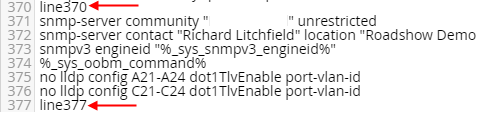
To help work out exactly where the problem is located, I add phony lines into the config template

and rerun the config sync (from the switch CLI)
activate provision force
Finding the Culprit
Several iterations, perhaps with a few phony entries, may be required to identify the problem line.
This is the Config Difference output:
Recent log events from the device (20)
<12>Nov 14 12:55:10 - 00158 update: AM1: line 386. Invalid input: line377
<12>Nov 14 12:55:09 - 00158 update: AM1: line 380. Invalid input: disable
<12>Nov 14 12:55:09 - 00158 update: AM1: line 374. Invalid input: line370
In this example, there are two %variables% included between the markers; they may include the problem.
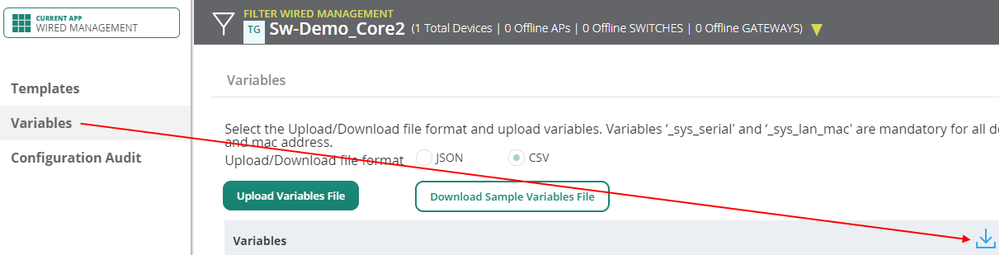
Download the variable file, and search for the problem statement ("disable" in this case).
Found it!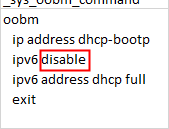
The command should be
no ipv6 enable
(I made that change when fiddling with the variable file previously, so it looks like this variable file was not overwritten when the current config was imported from the switch.)
Modify the entry, change the modified column to Y, and upload the variable file to the group Central.
After a successful upload, the display may not refresh to show the changes. Go to another screen and come back to ensure the correct data is shown.
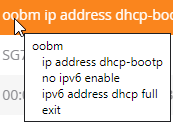
Remove the phony lines and rerun the config sync from the switch CLI ("activate provision force")
Check the Configuration Audit tab: success!
 Other Notes
Changes made to the template should push out automatically once the template is updated. "activate provision force" seemed to be required only when there was a problem.