If you’ve never used the “Policy Simulation,” I hope this guide will help. In this guide, I illustrate three simple but effective usages of ClearPass Simulation.
1. Domain Authentication Test
You can also do this in the controller, but ClearPass is simpler. With this test you can quickly verify if the username and password are correct in the AD
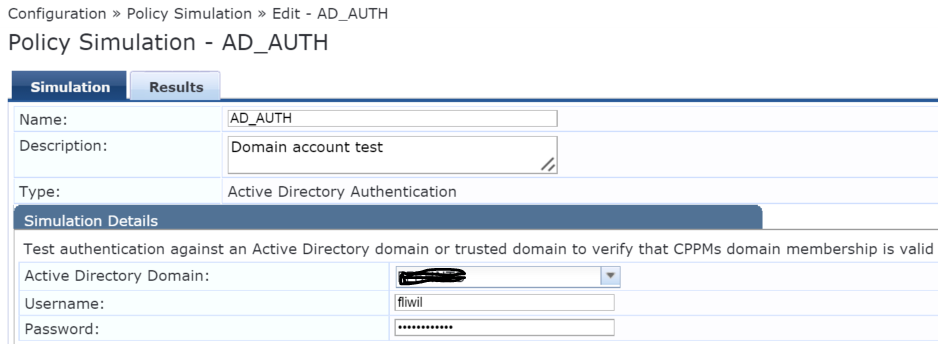
Figure 1: Build a simulation, enter AD, username and password, and click the “Results” tab
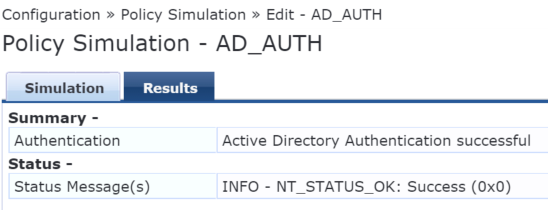
Figure 2: Good username and password
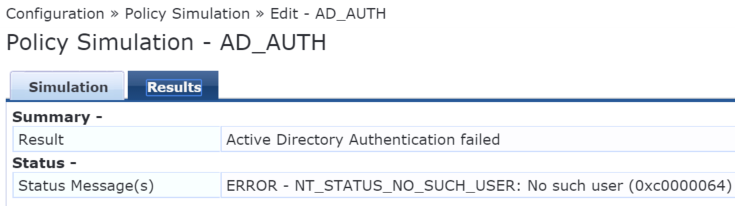
Figure 3: If wrong username or bad password entered, ClearPass will let you know.
2.Chained Simulation
This is my favorite simulation. It works like a debugging tool for a CPPM service. It will test the service end-to-end and returns what role, and what Enforcement Policies the authenticated user will land on, so you can tell if the service is working correctly.
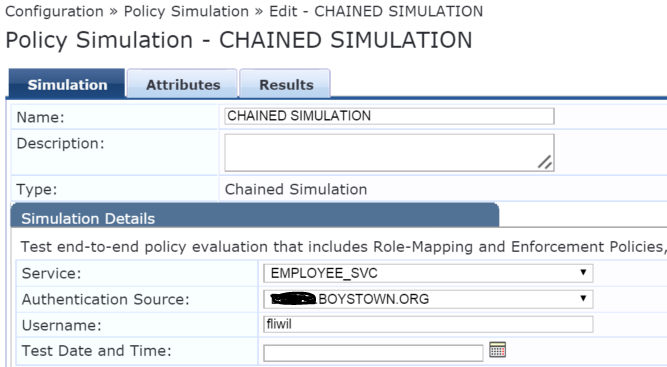
Figure 4: I had a service named "EMPLOYEE_SVC" to authenticate all machines and users. “fliwil” is a valid user in domain xxx.boystown.org. After entering all information, you can skip the “Attributes” tab, and click “Results.” Note that you don’t even need a password for user “fliwil.”
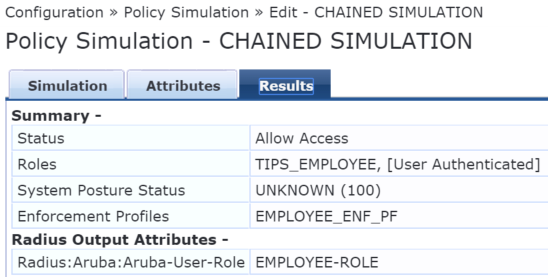
Figure 5: Simulation gives me instant result that this user is a valid user in AD, authenticated to TIPS-EMPLOYEE role, and enforced by EMPLOYEE_ENF_PF where it maps this user to EMPLOYEE-ROLE at the controller
3. Radius Simulation
This simulation can test any NAS devices and their radius attributes. In this simulation, I test a user credential to a switch authentication with a simple attribute “login-user” from the generic NAS.
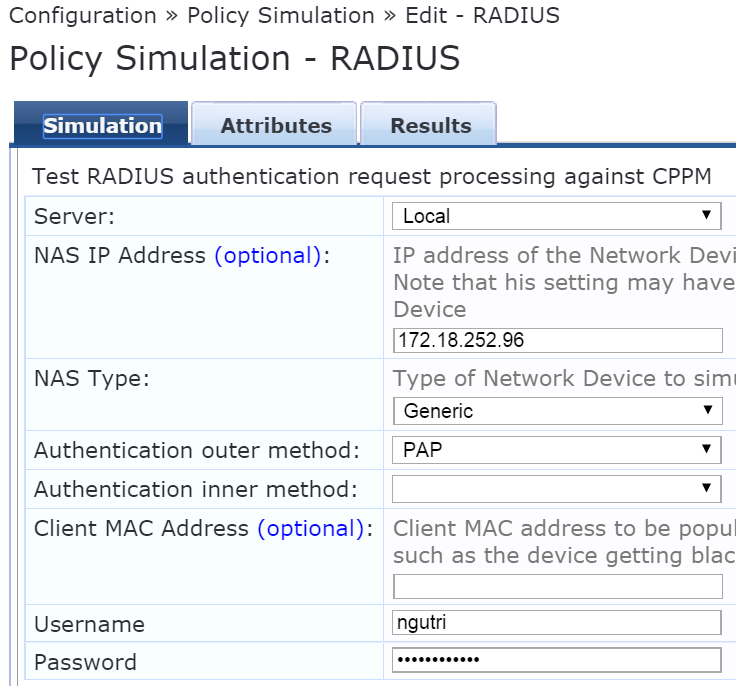
Figure 6: Generic Radius simulation
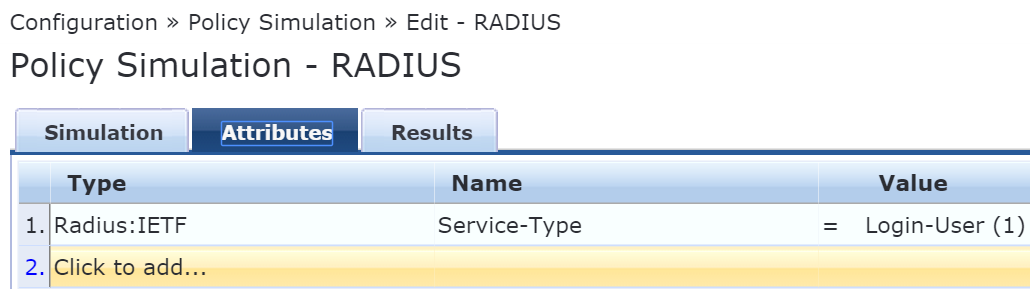
Figure 7: A simple attribute
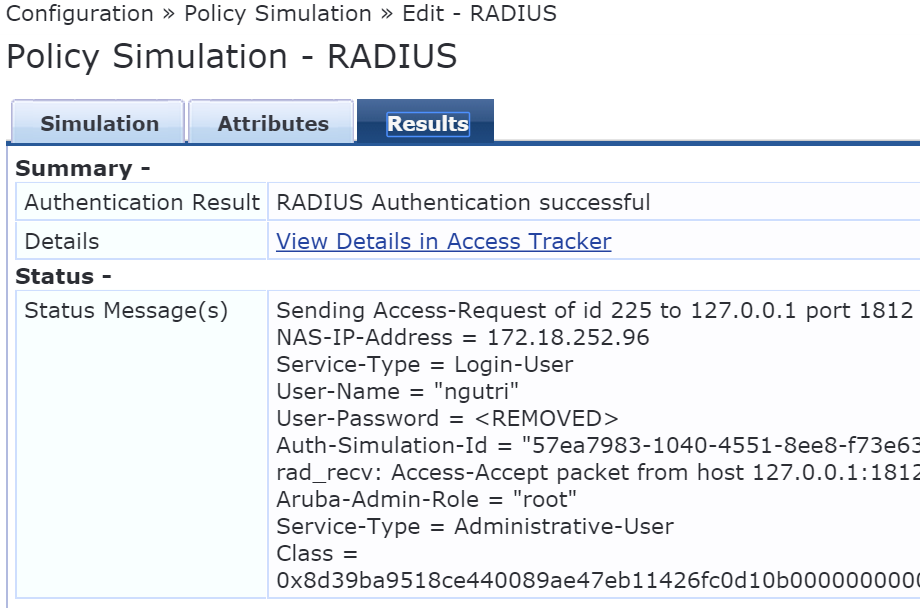
Figure 8: Good username and password were entered and user was authenticated. You can also click “View Details in Access Tracker” to see more details about the user, the method of authentication…
Thanks for taking the time to read through this guide. I hope that you were able to get something out of this ClearPass simulation.
Please Kudo if you found the post helps you.